
How it works
One drive at a time.
Start with a simple practice log. Choose a skill to practice, mark a useful moment, or add a note when it helps. You don’t need to learn every feature to use PracticeLane.
START WITH THE BASICS
Add a learner’s name, then you can start logging drives. Allow location access to record a route. An account, state, permit date, and coaching tools are optional.
Choose a learner. Start.
Select the learner whose practice you’re recording, then tap Start new drive. You can leave the focus skills and supervisor name empty.
Let the drive be the focus.
Time and location recording can continue with the screen off. Pause for a break and resume when you’re ready. You don’t need to keep interacting with the app.
Finish and save.
End the recording, review the essentials, and tap Save drive. You can leave skills, conditions, and notes empty or add them later.
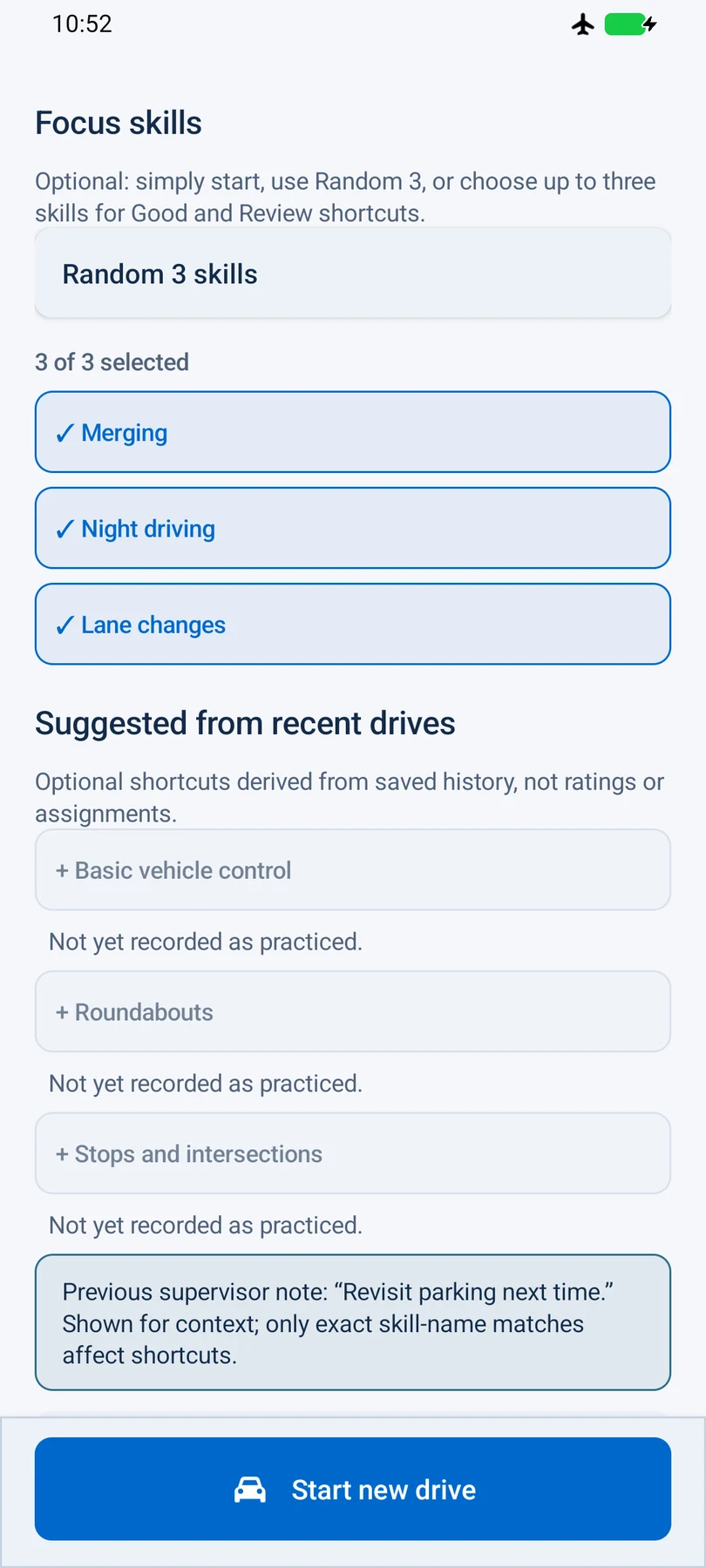
A little direction.
As much as you want.
Some days you know what to practice. Some days it helps to have a starting point. Both fit into the same simple drive.
- 01
Try Random 3 skills.Let the app select three focus skills. Change any of them, try again, or clear the selection and just drive.
- 02
Choose your own focus.Select up to three skills. Optional suggestions from saved history can help you revisit something or try a skill you haven’t recorded.
- 03
Keep useful moments.A supervising passenger can mark something Good, flag it for Review, or use More skills. Hold Intervention to note when they needed to step in. These are the supervisor’s notes, not automatic judgments about driving.
The learner should focus on the road. Leave phone interaction to a supervising passenger, or wait until safely parked.
AFTER THE DRIVE
Give the record some context.
Look at this drive.
Open History to review time, distance, available route and speed information, and observations. Add “What went well” or “Practice next,” update practiced skills and conditions, or use the available editing tools. The app keeps the original drive information too.
Look at the bigger picture.
Learner progress brings together practice time and skill areas recorded recently, earlier, or not yet. If the app can’t tell how much time was at night, it explains that instead of counting it as night practice.
These records show practice, not proof that a skill is mastered or a learner is ready for a license.
KEEP WHAT’S USEFUL
A record you can take with you.
Manual drives belong in your log.
Add a drive you practiced but didn’t record in the app. Enter how long it lasted; night minutes, distance, and notes are optional. A drive added by hand has no recorded route or speed graph.
Reports and backups do different jobs.
Save a PDF report to read or share your practice log. Use Back up selected history to save a file that can restore your records in the app. Choose where to save it and check files before sharing.
Understand your copies ↗No account needed.
Sign in if it helps.
Basic logging works without an account or mobile data. If you want to use supported driving records on other compatible devices, sign in with Google and turn on sync—the option for sharing saved drives through your account.
Signing in alone does not turn sync on. You separately choose whether to share later edits. Records saved only on your device and records in different accounts stay separate; this does not create a shared family dashboard.
Account and sync questions ↗